Headless WordPress sounded like the answer a few years ago. Keep the editor your team knows, put a fast React front end on top, and enjoy the best of both. For many sites, it worked well.
Then the traffic grew, the plugin list got longer, and the page builds started taking twenty minutes. Now you're paying for a WordPress server, a front-end host, a GraphQL layer and a developer who understands all three.
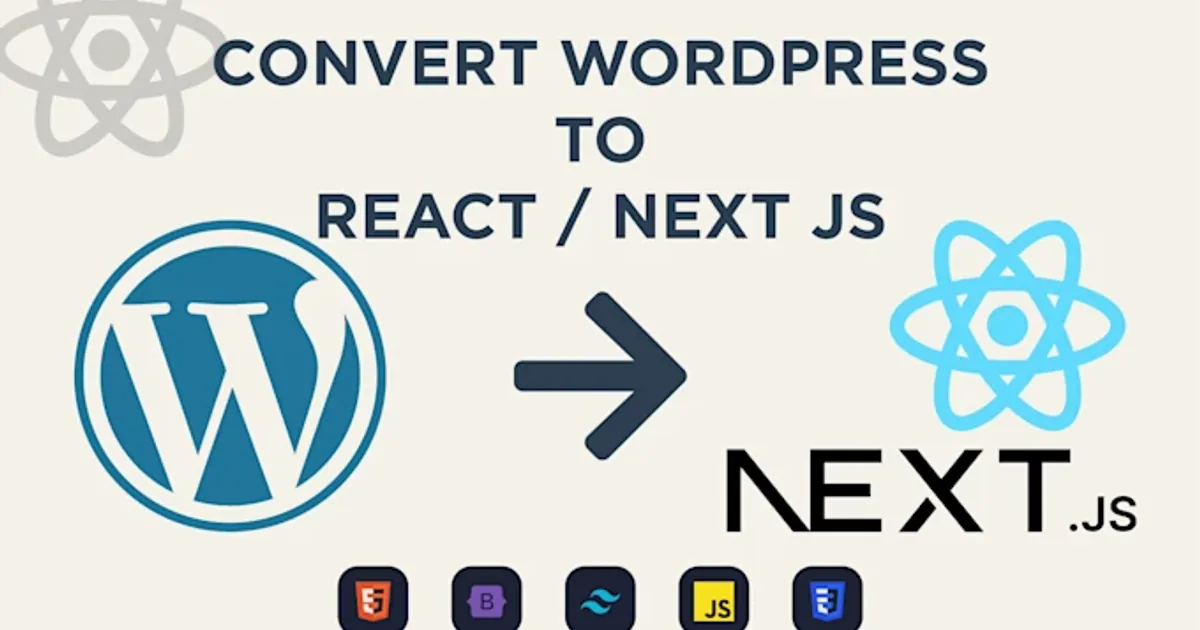
This post is for brands in that spot. It covers when staying headless is fine, when moving to Next.js with a different content backend makes sense, and how to migrate without losing your rankings.
First, Be Clear About What "Headless WordPress" Means
In a headless setup, WordPress only stores and manages content. A separate front end (often Next.js or Gatsby) fetches that content through the REST API or WPGraphQL and renders the pages.
Because Next.js is often the front end already, "migrating to Next.js" usually means one of two things:
- Upgrading how your existing Next.js front end works with WordPress: caching, rendering, revalidation
- Replacing the WordPress backend with a different content system or custom database, while keeping or rebuilding the front end
Be specific about which one you need. They have very different costs.
Signs You've Outgrown It
- Slow builds. Every content change triggers a rebuild of thousands of pages.
- Stale content. Editors publish and nothing changes on the site for ten minutes, or until someone clears the cache.
- Plugin trouble. Plugins that depend on the WordPress front end (forms, SEO, page builders) don't work in a headless setup, so you rebuild their features.
- Preview is broken or clumsy. Editors can't see what they're publishing.
- Two servers, two bills, two sets of updates and security patches.
- Complex data doesn't fit. Product catalogues, user accounts, orders and pricing logic live awkwardly inside WordPress custom fields.
- Slow API. WPGraphQL queries on a shared host can take over a second, which kills server rendering speed.
If you're mostly a blog or brochure site with a handful of editors, none of this may apply. In that case, fix the caching and keep what you have.
Decision Table
| Your situation | Best move |
|---|---|
| Content site, fast enough, editors are happy | Stay. Tune caching and revalidation. |
| Slow builds and stale content | Keep WordPress, switch to on-demand revalidation |
| Heavy plugin dependence, messy custom fields | Move content to a headless CMS built for it (Sanity, Contentful, Strapi) |
| App-like features: accounts, pricing, orders, dashboards | Custom backend with Next.js, and a CMS only for marketing content |
| WooCommerce store hitting limits | See our Shopify versus Next.js comparison |
Fix Stale Content Before You Rebuild Anything
A lot of "we need to migrate" projects are really "our cache is wrong" problems. The most useful fix is on-demand revalidation: when an editor publishes, WordPress calls your site and tells it which content changed. Only those pages refresh.
First, tag your WordPress fetches:
// lib/wp.ts
export async function getPost(slug: string) {
  const res = await fetch(
    `${process.env.WP_URL}/wp-json/wp/v2/posts?slug=${encodeURIComponent(slug)}&_embed`,
    { next: { tags: ["posts", `post:${slug}`] } },
  );
  if (!res.ok) throw new Error(`WordPress returned ${res.status}`);
  const [post] = await res.json();
  return post ?? null;
}
Then add a webhook endpoint. A small WordPress snippet or plugin calls it on publish, with a shared secret:
// app/api/revalidate/route.ts
import { revalidateTag } from "next/cache";
import { NextResponse } from "next/server";

export async function POST(request: Request) {
  const secret = request.headers.get("x-revalidate-secret");
  if (secret !== process.env.REVALIDATE_SECRET) {
    return NextResponse.json({ error: "Unauthorized" }, { status: 401 });
  }

  const { slug } = (await request.json()) as { slug?: string };

  // "max" serves the old page while the new one is built in the background
  revalidateTag("posts", "max");
  if (slug) revalidateTag(`post:${slug}`, "max");

  return NextResponse.json({ revalidated: true });
}
In Next.js 16, revalidateTag takes a second argument for the stale window. The single-argument form is deprecated, so use "max" for the usual stale-while-revalidate behaviour. Check the version-specific details in your own project's docs before you ship.
With this in place, editors see changes live within seconds, and you don't rebuild the whole site. For a lot of brands, this is the whole fix.
When a Real Migration Makes Sense
If the real issue is data and logic, caching won't save you. Typical triggers:
- You're storing thousands of products, bookings or listings in WordPress custom post types, and queries are slow.
- You need real user accounts, roles or per-customer pricing. We cover a version of this in our custom B2B portal guide.
- Your security surface worries you. A public WordPress admin with 40 plugins is an attack surface.
- Your team spends more time maintaining the setup than publishing.
In that case, the structure usually becomes:
- Next.js for the site and app
- A database (PostgreSQL) for structured data
- A headless CMS for marketing pages and blogs, or a simple custom admin
- Static generation or caching on the edge for public pages
How to Migrate Without Losing Rankings
SEO loss during migration is avoidable, and it's the part founders worry about most. A checklist:
- Crawl the current site and export every URL, title, description, canonical and status code.
- Keep URLs identical wherever possible. If a URL has to change, write a 301 redirect for it.
- Move metadata exactly: titles, descriptions, headings, schema, image alt text.
- Test on a staging URL with indexing blocked, then compare the crawl against the original.
- Submit the new sitemap to Google Search Console on launch day.
- Monitor for 4 to 8 weeks. Watch crawl errors, indexed pages and rankings for your top 20 queries.
- Don't launch at your busiest time. Pick a quiet week.
A short redirect map in Next.js looks like this:
// next.config.ts
import type { NextConfig } from "next";

const nextConfig: NextConfig = {
  async redirects() {
    return [
      { source: "/2023/:month/:slug", destination: "/blog/:slug", permanent: true },
      { source: "/category/:cat", destination: "/blog?category=:cat", permanent: true },
    ];
  },
};

export default nextConfig;
Rankings can wobble for a couple of weeks even in a clean migration. Slow sites that become fast usually recover and then improve. See our notes on why Next.js supports SEO work.
What It Costs
Typical ranges for Delhi NCR in 2026. They vary with page count and custom features.
- Performance fix on existing headless setup (caching, revalidation, API tuning): ₹30,000 to ₹1,00,000
- Front-end rebuild in Next.js, content stays in WordPress: ₹1,50,000 to ₹4,00,000
- Full migration with new CMS or custom backend and content import: ₹3,00,000 to ₹10,00,000+
Content migration is often the surprise cost. Hundreds of posts with embedded shortcodes, old images and broken links need cleaning, so ask any agency how they handle it.
What To Do Next
Before you approve a rebuild, measure. Run a speed test on your top five pages, record your build time and note how long editors wait to see changes. If caching fixes it, you've saved yourself a six-figure project. If it doesn't, you have the numbers to scope a proper migration.
INDOTREX works with WordPress and builds Next.js websites and apps, so we can tell you honestly which of the two paths fits. Talk to us and bring your current site URL and build logs.